
The Network tab in browser DevTools tells you quite a bit about a request, including how long DNS resolution and the TLS handshake took. The time waiting for the server is less helpful. There is a bar labeled “Waiting for server response”, but no indication of whether the application was waiting for a database query or calling another API.
With the Server-Timing response header, an application can include its own measurements. Chrome, Edge, and Firefox display these alongside the timings the browser already collects.
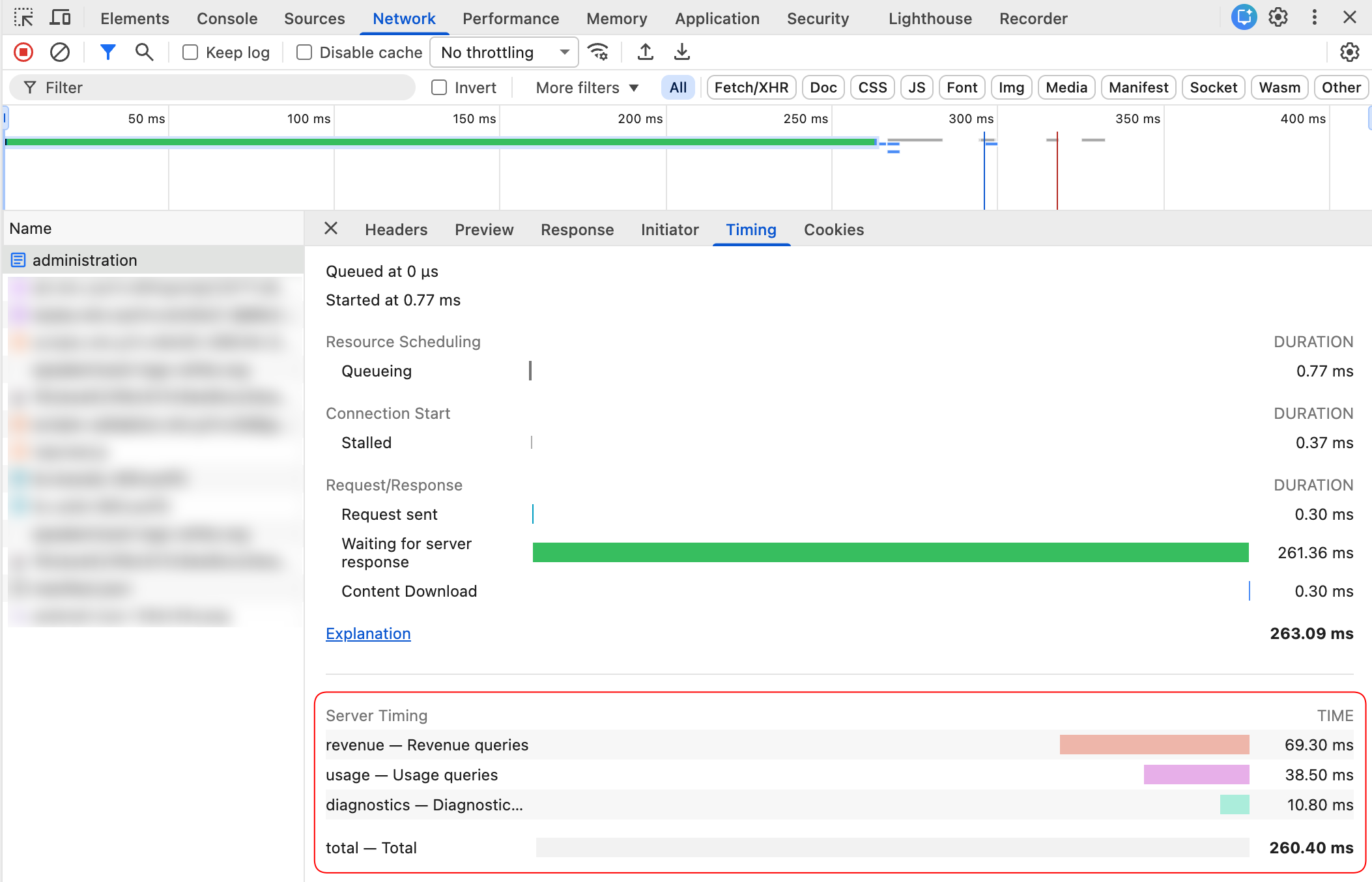
If you already use OpenTelemetry, you probably have these measurements in your tracing backend. But when you are already looking at a request in DevTools, having the database and API timings right there is pretty helpful. And building it is fun, of course!
If you would rather not build it yourself, Tomasz Pęczek’s Lib.AspNetCore.ServerTiming (source on GitHub) is a ready-made package that has been around for years. In this post, we’ll build a small version from scratch, which is a nice way to see how the pieces fit together.
The header format
Each entry in the Server-Timing header has a name, with an optional duration in milliseconds and a description. Multiple entries are separated by commas:
Server-Timing: db;dur=23.5;desc="Database query", api;dur=80.1;desc="External API call", total;dur=108.5In this example, db is the metric name and dur=23.5 is the time spent on the database query. The browser uses desc="Database query" as its label. Names cannot contain spaces, but descriptions can, provided they are quoted. The MDN reference covers the format in more detail.
You could send a custom header such as X-Processing-Time instead, but then you would have to build something to display it. The useful part of Server-Timing is that browsers already know what to do with it.
Measuring time in the middleware pipeline
Let’s start with the time between entering our middleware and starting the response. We cannot add a header after the response has started, so measuring after await next(context) would be too late. An HttpResponse.OnStarting callback gives us a place to record the elapsed time just before the headers are sent:
using System.Diagnostics;
using System.Globalization;

public sealed class ServerTimingMiddleware(RequestDelegate next)
{
    public async Task InvokeAsync(HttpContext context)
    {
        var startTimestamp = Stopwatch.GetTimestamp();

        context.Response.OnStarting(() =>
        {
            var elapsed = Stopwatch.GetElapsedTime(startTimestamp);

            context.Response.Headers.Append(
                "Server-Timing",
                $"total;dur={elapsed.TotalMilliseconds.ToString("F1", CultureInfo.InvariantCulture)};desc=\"Total\"");

            return Task.CompletedTask;
        });

        await next(context);
    }
}
Stopwatch.GetTimestamp() and Stopwatch.GetElapsedTime() let us measure elapsed time without creating a Stopwatch object for every request.
An extension method gives us the familiar app.UseServerTiming() registration in Program.cs:
public static class ServerTimingApplicationBuilderExtensions
{
    public static IApplicationBuilder UseServerTiming(this IApplicationBuilder app)
        => app.UseMiddleware<ServerTimingMiddleware>();
}
var app = builder.Build();
app.UseServerTiming();
app.UseRouting();
app.MapControllers();
app.Run();The measurement starts where UseServerTiming() sits in the pipeline, so anything before it is not included. Despite the total label, this measures time until the response starts, not the time needed to send the entire response body.
Note: In Chrome, the measurements appear under Network > select a request > Timing, in the Server Timing section below the browser’s own timings. They belong to the response carrying the header, which might be an API call rather than the page itself.
HTTP does have a way around that: trailers, which are headers sent after the response body. Tomasz’s library can send Server-Timing as a trailer, so its metrics can include the time spent writing the body. Browser support is the catch, though. Only Firefox reads a Server-Timing trailer, and only in DevTools (Network > select a request > Timings). Chrome, Edge and Safari ignore it, and JavaScript can’t read trailers through the Fetch API or PerformanceServerTiming. For this post, we’ll stick to the regular response header.
Letting downstream code add its own metrics
That gives us a duration, but not much help finding a slow operation, or even getting an understanding of where most time was spent. We could add more timers to the middleware, except it does not know where a database query starts or ends. The code doing that work needs a way to add its own measurements.
We can use HttpContext.Features to share a collection of measurements for the current request. The middleware creates it, and other code adds entries through an IServerTimingFeature interface:
public readonly record struct ServerTimingMetric(string Name, double DurationMs, string? Description);

public interface IServerTimingFeature
{
    void AddMetric(string name, TimeSpan duration, string? description = null);
    void AddMetric(string name, double durationMs, string? description = null);

    IReadOnlyList<ServerTimingMetric> Metrics { get; }
}
Several operations may run in parallel within a request. Their calls to AddMetric can overlap, so access to the list needs a lock (the dedicated System.Threading.Lock type works well here):
public sealed class ServerTimingFeature : IServerTimingFeature
{
    private readonly List<ServerTimingMetric> _metrics = [];
    private readonly Lock _sync = new();

    public void AddMetric(string name, TimeSpan duration, string? description = null)
        => AddMetric(name, duration.TotalMilliseconds, description);

    public void AddMetric(string name, double durationMs, string? description = null)
    {
        lock (_sync)
        {
            _metrics.Add(new ServerTimingMetric(name, durationMs, description));
        }
    }

    public IReadOnlyList<ServerTimingMetric> Metrics
    {
        get
        {
            lock (_sync)
            {
                return _metrics.ToArray();
            }
        }
    }
}
Formatting the header is a little more work than joining strings. The following helper replaces unsupported characters in metric names and escapes quotes and backslashes in descriptions:
using System.Globalization;
using System.Text;

public static class ServerTimingHeader
{
    public static string Format(IEnumerable<ServerTimingMetric> metrics)
    {
        var builder = new StringBuilder();

        foreach (var metric in metrics)
        {
            if (builder.Length > 0)
            {
                builder.Append(", ");
            }

            builder.Append(SanitizeName(metric.Name));
            builder.Append(";dur=");
            builder.Append(metric.DurationMs.ToString("F1", CultureInfo.InvariantCulture));

            if (!string.IsNullOrEmpty(metric.Description))
            {
                builder.Append(";desc=\"");
                builder.Append(Escape(metric.Description));
                builder.Append('"');
            }
        }

        return builder.ToString();
    }

    private static string SanitizeName(string name)
    {
        if (string.IsNullOrEmpty(name))
        {
            return "unnamed";
        }

        return string.Create(name.Length, name, static (buffer, source) =>
        {
            for (var i = 0; i < source.Length; i++)
            {
                var c = source[i];
                buffer[i] = char.IsAsciiLetterOrDigit(c) || c is '_' or '-' ? c : '_';
            }
        });
    }

    private static string Escape(string description)
        => description.Replace("\\", "\\\\").Replace("\"", "\\\"");
}
The middleware can now create the feature for downstream code to use. By the time OnStarting runs, it has the measurements collected so far and can include them in the header:
using System.Diagnostics;

public sealed class ServerTimingMiddleware(RequestDelegate next)
{
    public async Task InvokeAsync(HttpContext context)
    {
        var feature = new ServerTimingFeature();
        context.Features.Set<IServerTimingFeature>(feature);

        var startTimestamp = Stopwatch.GetTimestamp();

        context.Response.OnStarting(() =>
        {
            feature.AddMetric("total", Stopwatch.GetElapsedTime(startTimestamp), "Total");

            var header = ServerTimingHeader.Format(feature.Metrics);
            if (header.Length > 0)
            {
                context.Response.Headers.Append("Server-Timing", header);
            }

            return Task.CompletedTask;
        });

        await next(context);
    }
}
Calling AddMetric works, but it would mean repeating the timer code wherever we want a measurement. I prefer a using block around the operation being measured. This extension method records the duration when the block ends:
using System.Diagnostics;

public static class ServerTimingExtensions
{
    public static IDisposable Measure(this HttpContext context, string name, string? description = null)
    {
        var feature = context.Features.Get<IServerTimingFeature>();
        return feature is null
            ? NullScope.Instance
            : new TimingScope(feature, name, description);
    }

    private sealed class TimingScope(IServerTimingFeature feature, string name, string? description)
        : IDisposable
    {
        private readonly long _startTimestamp = Stopwatch.GetTimestamp();

        public void Dispose()
            => feature.AddMetric(name, Stopwatch.GetElapsedTime(_startTimestamp), description);
    }

    private sealed class NullScope : IDisposable
    {
        public static readonly NullScope Instance = new();
        public void Dispose() { }
    }
}
When the feature is absent, Measure() returns a scope that does nothing. That lets an endpoint keep its measurement code even when the middleware is disabled. For example, this endpoint measures its database query separately from the call to a pricing service:
app.MapGet("/api/products", async (HttpContext context, ProductRepository repository, PricingClient pricing) =>
{
    List<Product> products;
    using (context.Measure("db", "Database query"))
    {
        products = await repository.GetAllAsync();
    }

    using (context.Measure("pricing", "Pricing service"))
    {
        await pricing.EnrichAsync(products);
    }

    return Results.Ok(products);
});
A service handling the same request can get the context through IHttpContextAccessor. Outside a request, accessor.HttpContext can be null, so check it before calling Measure(). The no-op scope handles a missing feature, not a missing context.
Reusing what OpenTelemetry already measured
With OpenTelemetry, some of this work may already be instrumented using Activity. There are a couple of ways to reuse that information. If your code already has an elapsed duration, it can store it in a tag with a prefix we agree on.
There is a catch, though: the tag has to end up on the request activity, the one ASP.NET Core creates for the incoming request. In your data access code, Activity.Current is often a child span (for example one created by EF Core or SqlClient), and the middleware won’t see tags on that span. The IHttpActivityFeature gives you the request activity directly:
using Microsoft.AspNetCore.Http.Features;

// Somewhere in code that has access to the HttpContext
context.Features.Get<IHttpActivityFeature>()?.Activity
    .SetTag("timing.db", elapsed.TotalMilliseconds);
You can then copy all tags prefixed with timing.* from that same activity:
private static void CopyActivityTags(HttpContext context, IServerTimingFeature feature)
{
    var activity = context.Features.Get<IHttpActivityFeature>()?.Activity;
    if (activity is null)
    {
        return;
    }

    foreach (var tag in activity.TagObjects)
    {
        if (!tag.Key.StartsWith("timing.", StringComparison.Ordinal))
        {
            continue;
        }

        if (tag.Value is double durationMs)
        {
            feature.AddMetric(tag.Key["timing.".Length..], durationMs);
        }
    }
}
CopyActivityTags() belongs in the middleware’s OnStarting callback, before formatting the header. These timing.* tags are a convention for this example, not something OpenTelemetry adds automatically. If the timings you care about already live on child spans, the next approach is a better fit.
Another approach is an ActivityListener. It can record the duration of completed activities from your own ActivitySource, without requiring those custom tags:
builder.Services.AddHttpContextAccessor();

var app = builder.Build();

var accessor = app.Services.GetRequiredService<IHttpContextAccessor>();

ActivitySource.AddActivityListener(new ActivityListener
{
    ShouldListenTo = source => source.Name.StartsWith("MyApp.", StringComparison.Ordinal),
    Sample = (ref ActivityCreationOptions<ActivityContext> _) => ActivitySamplingResult.AllData,
    ActivityStopped = activity =>
    {
        accessor.HttpContext?
            .Features.Get<IServerTimingFeature>()?
            .AddMetric(activity.OperationName, activity.Duration, activity.DisplayName);
    }
});
Be selective about which activities become header entries. Recording one for every row in a result set could make the header rather large, and a long list of nearly identical measurements is not especially useful in DevTools.
Don’t hand this information to everyone
Exact internal timings are an information leak. Someone probing your API can learn which operations are expensive or whether a lookup hit a cache. With enough samples, the timings may even reveal whether a particular user exists, or how much load is required to bring your database down.
A predicate on an options object can gate the header without putting an environment or authorization policy in the middleware:
public sealed class ServerTimingOptions
{
    public Func<HttpContext, bool> ShouldEmit { get; set; } = static _ => false;
}
The middleware takes IOptions<ServerTimingOptions> and checks ShouldEmit first. When it returns false, the request goes straight to the next middleware, before the feature is installed or a timer is started:
using System.Diagnostics;
using Microsoft.Extensions.Options;

public sealed class ServerTimingMiddleware(RequestDelegate next, IOptions<ServerTimingOptions> options)
{
    private readonly ServerTimingOptions _options = options.Value;

    public async Task InvokeAsync(HttpContext context)
    {
        if (!_options.ShouldEmit(context))
        {
            await next(context);
            return;
        }

        var feature = new ServerTimingFeature();
        context.Features.Set<IServerTimingFeature>(feature);

        // ... the rest is unchanged
    }
}
The predicate itself is wired up at startup:
builder.Services.Configure<ServerTimingOptions>(options =>
{
    options.ShouldEmit = context =>
        context.RequestServices.GetRequiredService<IHostEnvironment>().IsDevelopment()
        || context.User.IsInRole("Diagnostics");
});
This policy emits the header in development, while other environments only emit it for authenticated users in the Diagnostics role. A reverse proxy or CDN can strip it as an added security measure, though relying on that alone leaves the protection vulnerable to a proxy configuration change.
There is one side effect to keep in mind. The predicate reads context.User, which is only populated once authentication has run, so the middleware has to move down the pipeline:
app.UseRouting();
app.UseAuthentication();
app.UseAuthorization();
app.UseServerTiming();
app.MapControllers();
The total metric then starts after authentication rather than at the very top. If you would rather measure the whole request, gate on something that does not need an authenticated user (such as the environment or a request header) and keep the middleware early.
Reading the timings from JavaScript
The timings are also available to JavaScript through the Performance Timeline API. Navigation and resource entries have a serverTiming collection. This example observes resource entries:
new PerformanceObserver((list) => {
  for (const entry of list.getEntries()) {
    for (const timing of entry.serverTiming ?? []) {
      console.log(`${entry.name}: ${timing.name} = ${timing.duration}ms (${timing.description})`);
    }
  }
}).observe({ type: "resource", buffered: true });
Note: For cross-origin requests (say, a front-end on
app.example.comcallingapi.example.com), browsers hide theserverTimingentries from JavaScript unless the response also carries aTiming-Allow-Originheader that allows the calling origin. DevTools still shows them, which makes this one confusing to debug.
This allows client-side reporting to include server measurements alongside the duration observed by the browser. They describe different parts of the request, so a fast database query does not necessarily mean the response reached the user quickly.
Testing it
There is no need to run your full application to test the header formatting through the middleware. The test has to invoke the OnStarting callbacks, which you can do with (another) custom response feature:
using Microsoft.AspNetCore.Http;
using Microsoft.AspNetCore.Http.Features;

internal sealed class TestResponseFeature : HttpResponseFeature
{
    private readonly List<(Func<object, Task> Callback, object State)> _callbacks = [];

    public override bool HasStarted => false;

    public override void OnStarting(Func<object, Task> callback, object state)
        => _callbacks.Add((callback, state));

    public async Task FireOnStartingAsync()
    {
        foreach (var (callback, state) in _callbacks)
        {
            await callback(state);
        }
    }
}
The test itself:
using Microsoft.AspNetCore.Http;
using Microsoft.Extensions.Options;
using Xunit;

[Fact]
public async Task Writes_metrics_added_by_downstream_code()
{
    var responseFeature = new TestResponseFeature();
    var context = new DefaultHttpContext();
    context.Features.Set<IHttpResponseFeature>(responseFeature);

    var options = Options.Create(new ServerTimingOptions { ShouldEmit = _ => true });
    var middleware = new ServerTimingMiddleware(
        next: ctx =>
        {
            ctx.Features.Get<IServerTimingFeature>()!.AddMetric("db", 23.5, "Database query");
            return Task.CompletedTask;
        },
        options);

    await middleware.InvokeAsync(context);
    await responseFeature.FireOnStartingAsync();

    var header = context.Response.Headers["Server-Timing"].ToString();

    Assert.Contains("db;dur=23.5;desc=\"Database query\"", header);
    Assert.Contains("total;dur=", header);
}
For the real middleware pipeline, WebApplicationFactory<T> is a better fit. It can also verify which responses include the header under the application’s configured policy.
Wrapping up
I would still use OpenTelemetry to investigate a problem across several services. For “why is this one request slow?”, though, the answer is now one click away in the Network tab. If you want this without maintaining the code yourself, give Lib.AspNetCore.ServerTiming a try. And whichever you pick, do make sure this data is not exposed to every single user of your application.