
 One of the well-loved features of Windows Azure Web Sites is the fact that you can simply push our ASP.NET application’s source code to the platform using Git (or TFS or DropBox) and that sources are compiled and deployed on your Windows Azure Web Site. If you’ve checked the management portal earlier, you may have noticed that a number of deployment steps are executed: the deployment process searches for the project file to compile, compiles it, copies the build artifacts to the web root and has your website running. But did you know you can customize this process?
[update] Mstest seems to work now as well, using the console runner from VS2012.
Customizing the build process
To get an understanding of how to customize the build process, I want to explain you how this works. In the root of your repository, you can add a .deployment file, containing a simple directive: which command should be run upon deployment.
[config]
command = build.bat
This command can be a batch file, a PHP file, a bash file and so on. As long as we can tell Windows Azure Web Sites what to execute. Let’s go with a batch file.
@echo off
echo This is a custom deployment script, yay!
When pushing this to Windows Azure Web Sites, here’s what you’ll see:
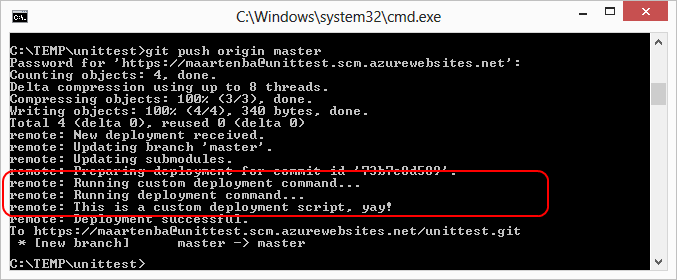
In this batch file, we can use some environment variables to further customize the script:
- DEPLOYMENT_SOURCE - The initial “working directory”
- DEPLOYMENT_TARGET - The wwwroot path (deployment destination)
- DEPLOYMENT_TEMP - Path to a temporary directory (removed after the deployment)
- MSBUILD_PATH - Path to msbuild
After compiling, you can simply xcopy our application to the %DEPLOYMENT_TARGET% variable and have your website live.
Generating deployment scripts
Creating deployment scripts can be a tedious job, good thing that the azure-cli tools are there! Once those are installed, simply invoke the following command and have both the .deployment file as well as a batch or bash file generated:
azure site deploymentscript --aspWAP "path\to\project.csproj"
For reference, here’s what is generated:
@echo off

:: ----------------------
:: KUDU Deployment Script
:: ----------------------

:: Prerequisites
:: -------------

:: Verify node.js installed
where node 2>nul >nul
IF %ERRORLEVEL% NEQ 0 (
  echo Missing node.js executable, please install node.js, if already installed make sure it can be reached from current environment.
  goto error
)

:: Setup
:: -----

setlocal enabledelayedexpansion

SET ARTIFACTS=%~dp0%artifacts

IF NOT DEFINED DEPLOYMENT_SOURCE (
  SET DEPLOYMENT_SOURCE=%~dp0%.
)

IF NOT DEFINED DEPLOYMENT_TARGET (
  SET DEPLOYMENT_TARGET=%ARTIFACTS%\wwwroot
)

IF NOT DEFINED NEXT_MANIFEST_PATH (
  SET NEXT_MANIFEST_PATH=%ARTIFACTS%\manifest

  IF NOT DEFINED PREVIOUS_MANIFEST_PATH (
    SET PREVIOUS_MANIFEST_PATH=%ARTIFACTS%\manifest
  )
)

IF NOT DEFINED KUDU_SYNC_COMMAND (
  :: Install kudu sync
  echo Installing Kudu Sync
  call npm install kudusync -g --silent
  IF !ERRORLEVEL! NEQ 0 goto error

  :: Locally just running "kuduSync" would also work
  SET KUDU_SYNC_COMMAND=node "%appdata%\npm\node_modules\kuduSync\bin\kuduSync"
)
IF NOT DEFINED DEPLOYMENT_TEMP (
  SET DEPLOYMENT_TEMP=%temp%\___deployTemp%random%
  SET CLEAN_LOCAL_DEPLOYMENT_TEMP=true
)

IF DEFINED CLEAN_LOCAL_DEPLOYMENT_TEMP (
  IF EXIST "%DEPLOYMENT_TEMP%" rd /s /q "%DEPLOYMENT_TEMP%"
  mkdir "%DEPLOYMENT_TEMP%"
)

IF NOT DEFINED MSBUILD_PATH (
  SET MSBUILD_PATH=%WINDIR%\Microsoft.NET\Framework\v4.0.30319\msbuild.exe
)

::::::::::::::::::::::::::::::::::::::::::::::::::::::::::::::::::::::::::::::::::::::::::::::::::::::::::::::::::::::::::::::::::
:: Deployment
:: ----------

echo Handling .NET Web Application deployment.

:: 1. Build to the temporary path
%MSBUILD_PATH% "%DEPLOYMENT_SOURCE%\path.csproj" /nologo /verbosity:m /t:pipelinePreDeployCopyAllFilesToOneFolder /p:_PackageTempDir="%DEPLOYMENT_TEMP%";AutoParameterizationWebConfigConnectionStrings=false;Configuration=Release
IF !ERRORLEVEL! NEQ 0 goto error

:: 2. KuduSync
echo Kudu Sync from "%DEPLOYMENT_TEMP%" to "%DEPLOYMENT_TARGET%"
call %KUDU_SYNC_COMMAND% -q -f "%DEPLOYMENT_TEMP%" -t "%DEPLOYMENT_TARGET%" -n "%NEXT_MANIFEST_PATH%" -p "%PREVIOUS_MANIFEST_PATH%" -i ".git;.deployment;deploy.cmd" 2>nul
IF !ERRORLEVEL! NEQ 0 goto error

::::::::::::::::::::::::::::::::::::::::::::::::::::::::::::::::::::::::::::::::::::::::::::::::::::::::::::::::::::::::::::::::::

goto end

:error
echo An error has occured during web site deployment.
exit /b 1

:end
echo Finished successfully.
This script does a couple of things:
- Ensure node.js is installed on Windows Azure Web Sites (needed later on for synchronizing files)
- Setting up a bunch of environment variables
- Run msbuild on the project file we specified
- Use kudusync (a node.js based tool, hence node.js) to synchronize modified files to the wwwroot of our site
Try it: after pushing this to Windows Azure Web Sites, you’ll see the custom script being used. Not much added value so far, but that’s what you have to provide.
Unit testing before deploying
Unit tests would be nice! All you need is a couple of unit tests and a test runner. You can add it to your repository and store it there, or simply download it during the deployment. In my example, I’m using the Gallio test runner because it runs almost all test frameworks, but feel free to use the test runner for NUnit or xUnit instead.
Somewhere before the line that invokes msbuild and ideally in the “setup” region of the deployment script, add the following:
IF NOT DEFINED GALLIO_COMMAND (
  IF NOT EXIST "%appdata%\Gallio\bin\Gallio.Echo.exe" (
    :: Downloading unzip
    echo Downloading unzip
    curl -O http://stahlforce.com/dev/unzip.exe
    IF !ERRORLEVEL! NEQ 0 goto error

    :: Downloading Gallio
    echo Downloading Gallio
    curl -O http://mb-unit.googlecode.com/files/GallioBundle-3.4.14.0.zip
    IF !ERRORLEVEL! NEQ 0 goto error

    :: Extracting Gallio
    echo Extracting Gallio
    unzip -q -n GallioBundle-3.4.14.0.zip -d %appdata%\Gallio
    IF !ERRORLEVEL! NEQ 0 goto error
  )

  :: Set Gallio runner path
  SET GALLIO_COMMAND=%appdata%\Gallio\bin\Gallio.Echo.exe
)
See what happens there? We check if the local system on which your files are stored in WindowsAzure Web Sites already has a copy of the Gallio.Echo.exetest runner. If not, let’s download a tool which allows us to unzip. Next, the entire Gallio test runner is downloaded and extracted. As a final step, the %GALLIO_COMMAND% variable is populated with the full path to the test runner executable.
Right before the line that calls “kudusync”, add the following:
echo Running unit tests
"%GALLIO_COMMAND%" "%DEPLOYMENT_SOURCE%\SampleApp.Tests\bin\Release\SampleApp.Tests.dll"
IF !ERRORLEVEL! NEQ 0 goto error
Yes, the name of your test assembly will be different, you should obviously change that. What happens here? Well, we’re invoking the test runner on our unit tests. If it fails, we abort deployment. Push it to Windows Azure and see for yourself. Here’s what is displayed on success:
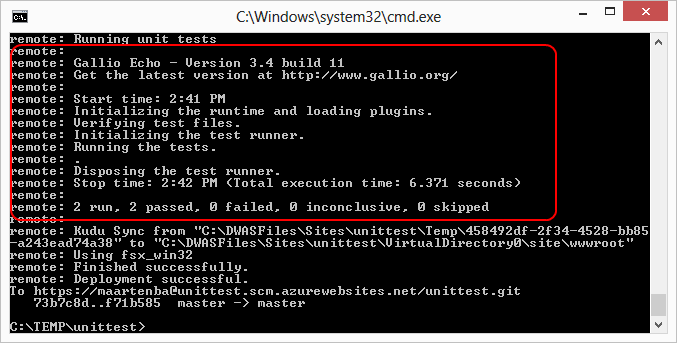
All green! And on failure, we get:

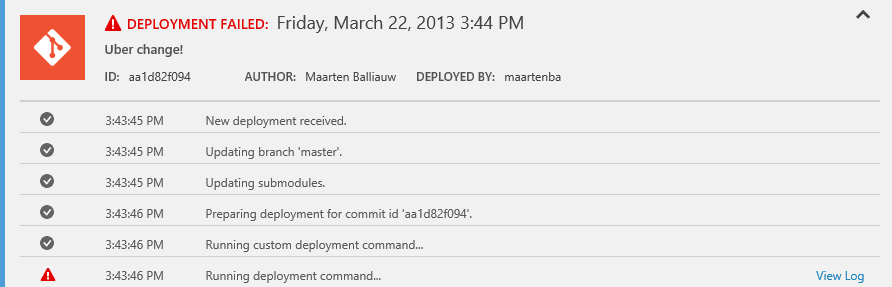
In the portal, you can clearly see that deployment was aborted:
That’s it. Enjoy!